Raise a Payment
Request a Member’s Bank Details for Clerical Payment - you can follow this YouTube video tutorial or follow the steps below.
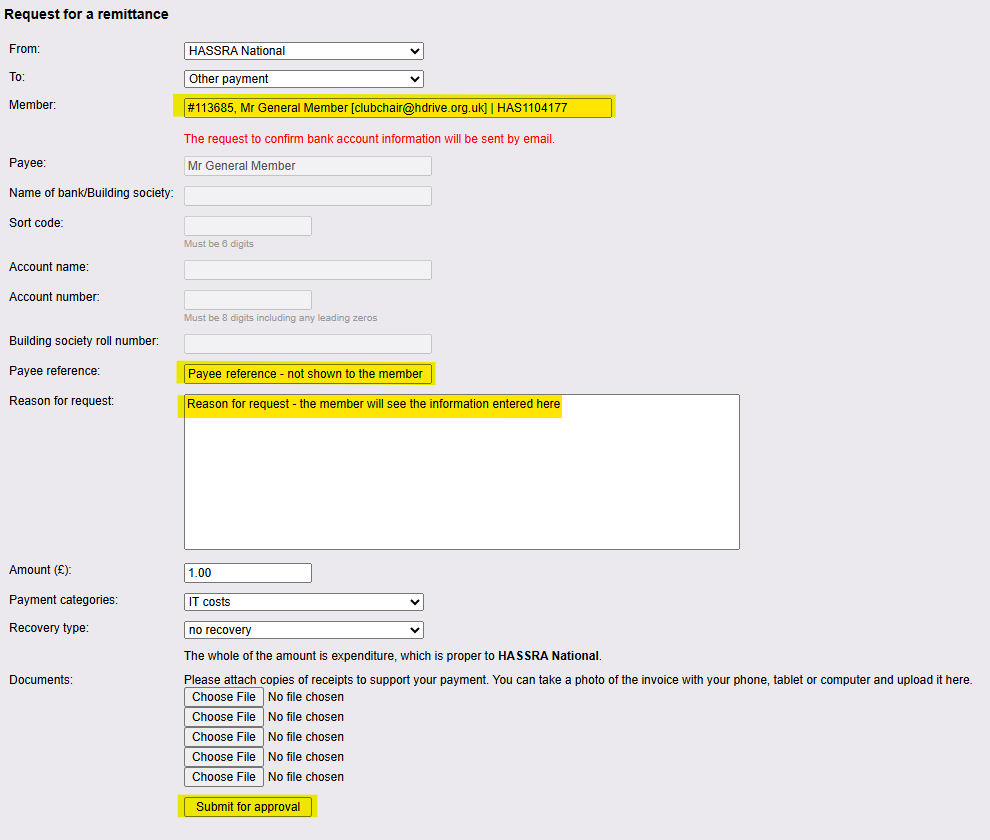
- Click on Raise a Payment in the Control Centre.
- In the ‘To’ dropdown, select the ‘Other payment’ option.
- In the ‘Member’ field, begin typing either the member ID, name, email address or HASSRA membership number. Then select the required member from the list of options.
- Enter a Payee reference.
- Enter a Reason for request. Please ensure this is clear and concise as it will be contained in the email sent to the member.
- Complete all other fields as usual and finally click Submit for approval.
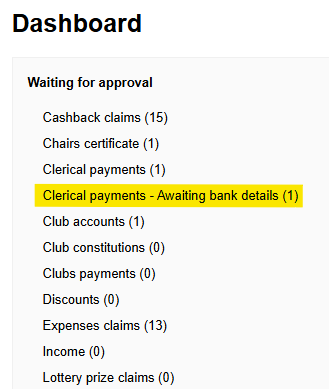
This will now show on the Dashboard under:
Waiting for approval > Clerical payments – Awaiting bank details.
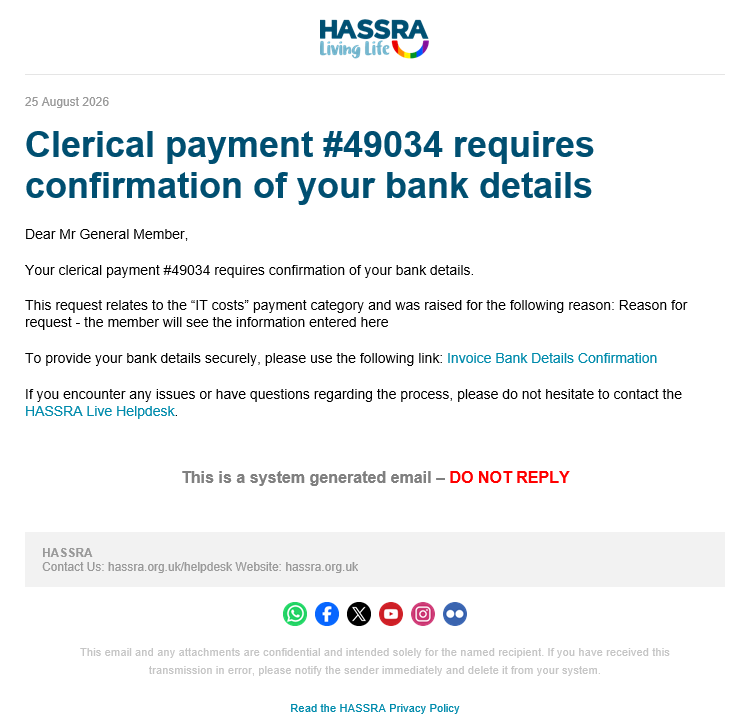
The member will receive an email, an example of which is shown below.
It will show the category under which the payment has been raised and the reason, as stated when the payment was raised.
It will also contain a link to confirm their bank details.
Once the member clicks the link, they will be prompted to sign into their account (if they are not already signed in) and will then be able to enter their details and then click Submit for approval.
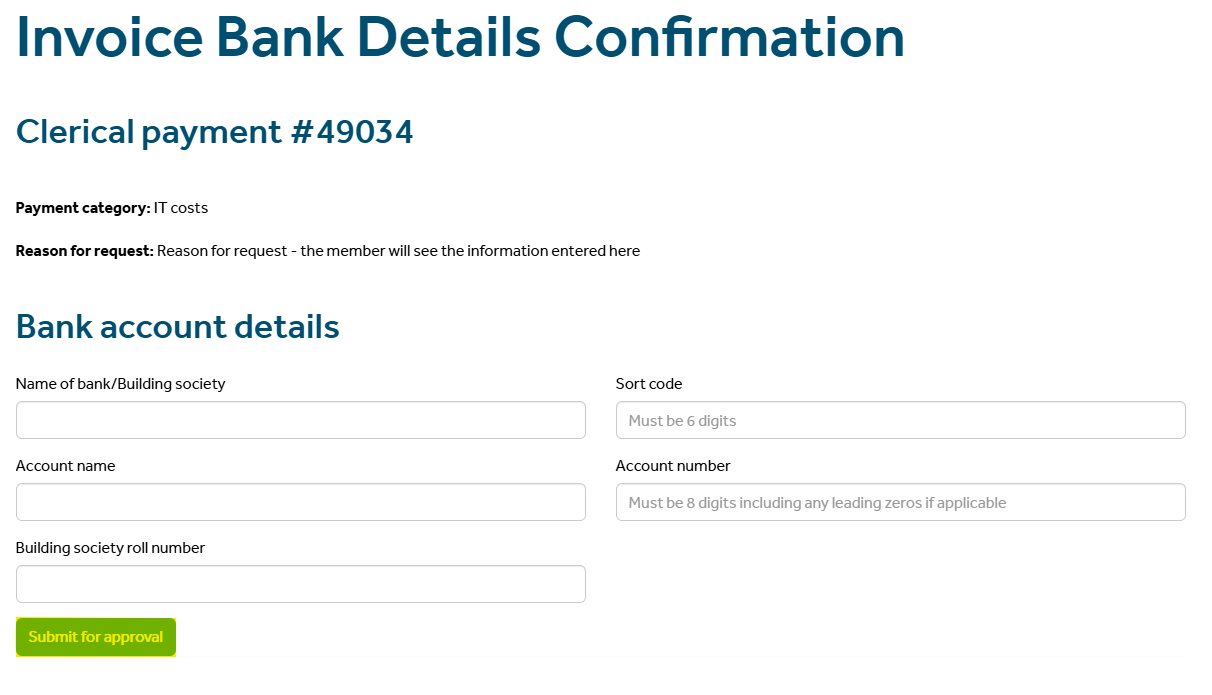
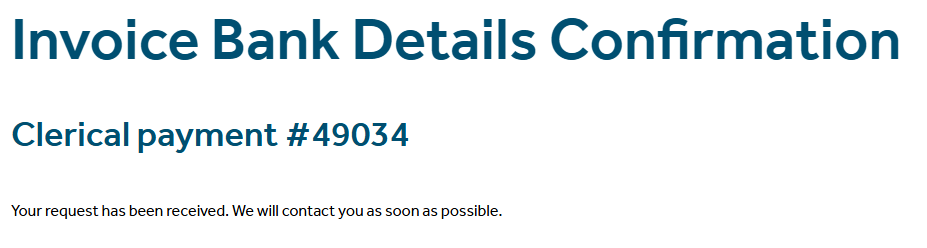
The member will then see an on-screen message advising that the details have been received.
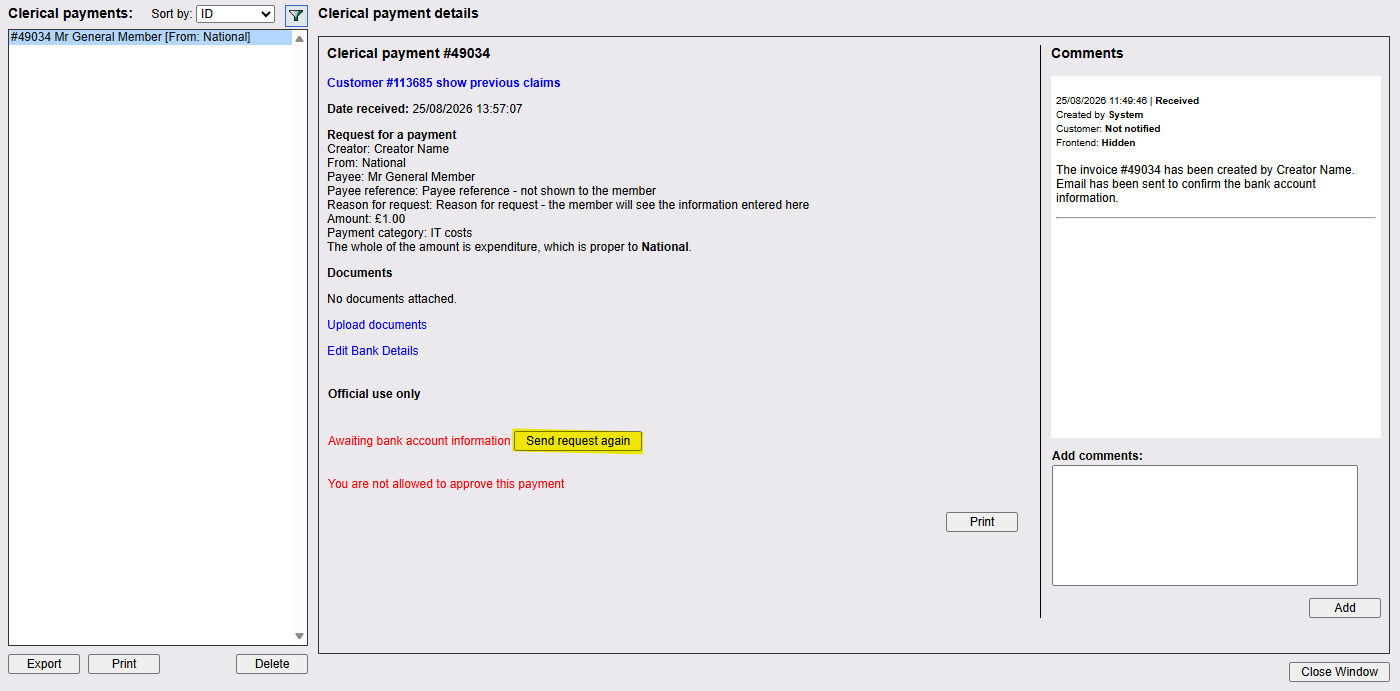
The member’s details will then be automatically entered on the raised payment and there will be a system comment shown to that effect.
All further actions will be carried out as usual, with approval checks and eventual payment.
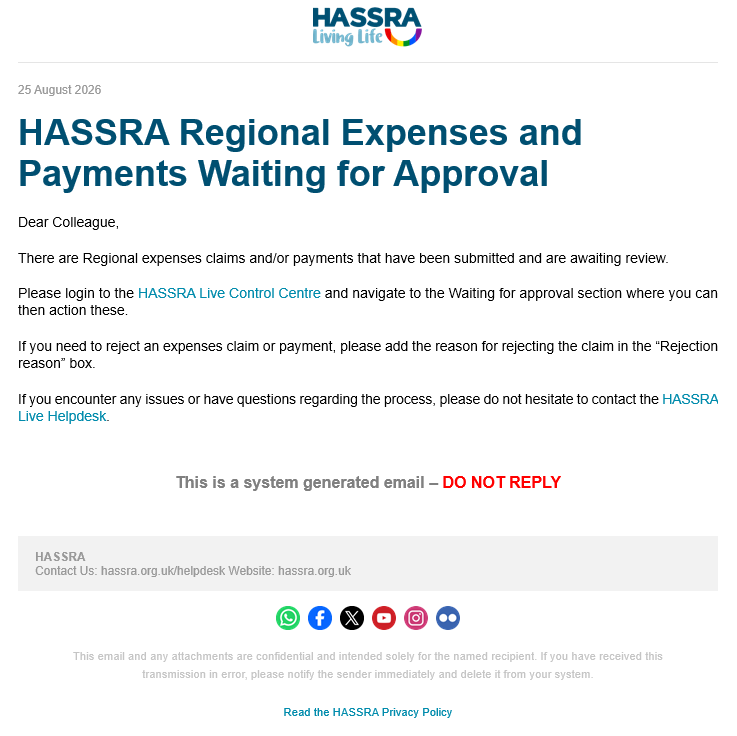
Approvers receive a daily email around 11am reminding them of outstanding payments/approvals.
Some members may not want to send this information electronically and may prefer to give details over the phone.
By clicking on Edit Bank Details, you will be able to manually input this information. [please note that the member will have been automatically sent a link to provide their details when the request was originally raised]
Just enter the information provided and click Save.
Once these details are input, the member will no longer be able to submit their information by clicking on the original email link.
However, there is the option to Edit Bank Details at any time prior to Approval, if required.
If a member doesn’t reply to the original email request within what you consider to be a reasonable timeframe, there is also an option to Send request again.